


Tools like ChatGPT and Gemini have made it so easy to generate images and designs. But for large format print, they almost always create more problems than they solve. The good news is you don’t need to figure any of this out yourself.
We offer free artwork & design support
Just send us a brief of what you need, your brand colours, your logo, and any ideas you have. Our design team will create print-ready artwork for you. No extra charge, no back and forth over file issues, no reprints.
If you’d like to understand why AI artwork causes problems, or you’d prefer to supply your own files, read on.
Jump to:
- AI artwork problems for your brand
- Technical AI Artwork problems
- Easiest option? Let us do it
- Tips if you really want to use AI
- Quick checklist before sending artwork
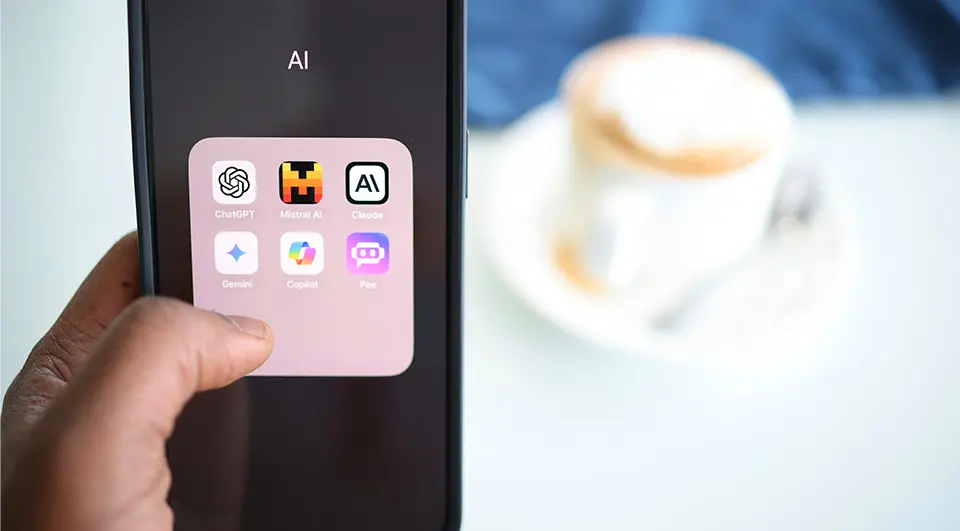
The AI revolution is at our fingertips. With a suite of powerful tools just a tap away, the temptation to “generate” rather than “create” has never been higher.
The problem with AI artwork goes beyond the technical
Most people worry about whether an AI image will print correctly. That’s a valid concern that we’ll get to. But there’s a bigger issue that’s easy to overlook. What AI artwork actually says about your brand.
People can tell
AI image generators have a recognisable house style. Audiences are already starting to clock it instinctively, the same way stock photos became obvious. Your site branding is often someone’s first impression of your business. AI artwork quietly signals that you didn’t think it was worth the effort.
It looks like everyone else
AI generates the most statistically likely version of what you asked for. That’s the opposite of what good branding should do. If your hoarding signage looks like your competitor’s site hoarding because you both used the same tool with a similar prompt, you’ve lost before anyone’s read a word.
AI fatigue is coming
There’s already a growing backlash in design and marketing. The association is shifting from “impressive” to “lazy”. Brands that lean on AI-generated visuals now risk looking dated sooner than they think. Distinctive, considered design ages far better.
Generic by design
AI art is built on averages. It gives you the most common interpretation of your brief, not the most memorable one. Real design starts with understanding your audience and your message to produce something that couldn’t belong to anyone else.
And then there are the technical problems
Even if the brand argument doesn’t put you off, the file quality almost certainly will. Tools like ChatGPT, Gemini and others generate images designed for screens, typically at 72 dpi and a small pixel size. Large format printing needs a minimum of 150 dpi at the actual finished size. A banner or fence cover from an AI image will almost always come out blurry or pixelated.
Resolution is the biggest issue, but it’s not the only one.
The image is too small to print large
A typical AI-generated image is around 1024×1024 pixels. That prints cleanly at roughly 17x17cm. Anything larger and it starts to soften. At event or construction branding scale, it will look noticeably blurry.
Text inside AI images is unreliable
AI tools struggle to render readable text. Letters get merged, words are misspelled, edges become blurred. This is a known limitation. It’s not something you can prompt your way out of.
Your logo won’t be your actual logo
If you ask an AI tool to include your logo, it will invent something that looks vaguely similar. It won’t be your real brand mark, it won’t be a vector file, and it won’t be usable for print.
Colours look different in print
AI tools always output RGB colour mode, designed for screens. Print uses CMYK. Vivid blues, purples and greens can look duller when converted. What looked great on screen may disappoint in print.
No bleed – white edges after trimming
Large format prints are cut after printing. Without bleed (a small extension of the artwork beyond the trim line), you can end up with unwanted white edges. AI tools have no concept of this.
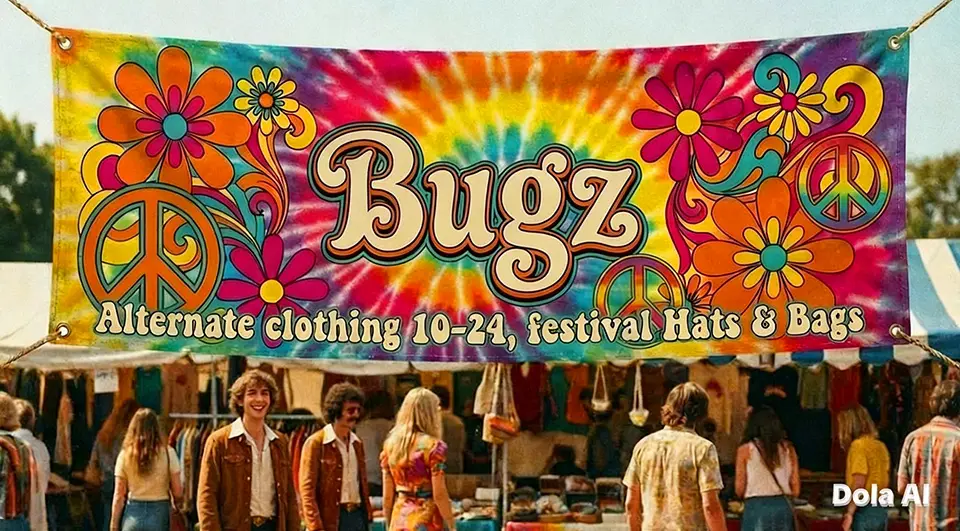
AI will often generate mockups rather than artwork files. This makes it impossible to scale to large format print size.
The easiest option – let us do it
Our design support is free and it’s there precisely for situations like this. You bring the idea and we’ll make it print-ready. Here’s how it works:
1. Send us a brief
Tell us what you need, the finished size, what it’s for, and any ideas or references you like. The more detail the better, but even a rough idea is a great starting point.
2. Share your assets
Send over your logo (ideally SVG, EPS, or PDF), brand colours if you have them, and any photos or content you want included.
3. We create your artwork
Our team builds print-ready artwork at the correct size, resolution, colour mode and bleed.
4. You approve and we print
We share a proof for your sign-off. Once you’re happy, it goes to print. No file issues, no delays.

Why waste time with AI generated artwork when our design team can produce this?
If you do want to use AI – tips to give yourself the best chance
We get it, sometimes you just want to have a go yourself. Here’s how to get a result that’s as close to print-ready as possible.
Even with all these tips, AI artwork will almost always need work before it’s ready for large format print. If in doubt, send it to us before ordering and we’ll let you know if there are any issues.
1. Never put text in your AI image
Include “no text, no words, no lettering, no signage” in every prompt. AI-generated text looks unprofessional in print. Always add copy in a design tool (Illustrator, Photoshop etc) afterwards as a proper text layer.
2. Use AI for the background or mood
Think of the AI image as a creative starting point, not a finished design. Generate something that works as a background or hero image, then bring it into a design tool. Add your real logo as a vector file, set your text as a type layer, and export the whole thing at the correct print size and resolution.
3. Design your prompt for print
A few simple things in your prompt make a big difference:
- Specify the orientation and ratio – “wide landscape, approximately 3:1 ratio” stops the AI guessing.
- Leave space for your content – “clear space on the right third for text overlay” gives you room to add copy.
- Keep it bold and simple – fine detail and intricate patterns get lost when upscaled. Strong shapes and clear subjects reproduce better.
- Ask for a clean or plain background – much easier to work with in a design tool.
4. Run it through an upscaler before sending to us
AI upscalers can intelligently enlarge an image without it going blurry. It’s not a perfect fix, but a significant improvement. We recommend trying ImgUpscaler as a starting point.
5. Use your real logo – not an AI version
Never ask an AI tool to include your logo. It will invent something that looks approximately like it rather than the real thing. Always place your actual logo file in your design software. If you only have a low-res PNG or JPG version, try Vectorizer.ai to convert it to a clean vector first.
6. Convert to CMYK and add bleed before sending
Export your final design in CMYK colour mode (not RGB) and include 3-5mm bleed on all sides. Keep all important content (text, logos, images) at least 5mm inside the trim edge.
Quick checklist before sending artwork
Good to go:
- Image is 150 dpi or higher at print size
- Logo is a vector file (SVG, EPS, PDF)
- All text added in design software
- File exported in CMYK
- 3-5mm bleed on all sides
- Key content at least 5mm inside trim
Likely to cause problems:
- Entire design generated by AI tool
- Text rendered inside the AI image
- Logo is a small JPG or PNG
- File is RGB only
- No bleed added
Still not sure? Send it to us first.
We’re happy to check your file before it goes to print and let you know if there are any issues.